
A Dynamics 365 map is where customer data becomes a decision.
Every account, lead, and work order in your CRM carries an address, yet most teams still read those addresses as rows in a grid. The leaders pulling ahead are the ones who put a map on top of the data. They see patterns, plan smarter visits, and balance workloads before problems appear.
Key Takeaways
|
If you are evaluating how to map Dynamics CRM data, here is what matters, and how Maplytics delivers it inside the CRM you already use.
Start with clean location data
A map is only as good as the coordinates behind it. Before dynamics crm maps can show anything useful, records need latitude and longitude. That is what geocoding Dynamics 365 data does. It converts addresses into points that can be plotted, filtered, and analyzed.
Once records are geocoded, Inogic-Maplytics plots them with color-coded, custom pushpins, so segments such as account type or status are visible at a glance.
Then comes the question leaders actually ask- where is the concentration?
Heat maps in Dynamics 365 answer it by showing the intensity of your data across a region. A heat map in Dynamics CRM can reveal where sales are strongest, where cases cluster, or which areas are underserved. Maplytics supports heat map visualization of CRM data, so those insights stay inside the platform where your team already works.
 Map integration should be a choice, not a constraint
 Map integration should be a choice, not a constraint
Searches for Dynamics 365 map integration, maps integration, and map integration for Dynamics CRM all share one assumption: that you will pick a provider and live with it. That assumption is outdated.
Teams ask for different things. Some search for Dynamics 365 Google Maps integration because their users already know Google Maps. Others look up Azure Maps for Dynamics CRM and Azure Maps Dynamics 365 integration because they want mapping to sit within their Microsoft cloud and governance. Others want a map styled to their brand.
Maplytics supports all three: Google Maps, Azure Maps, and Mapbox. You choose the map that fits your business, and the same Maplytics features sit on top!
A note on Esri: teams searching for Esri Dynamics 365 or Esri maps for Dynamics 365 are usually after GIS-grade context. Maplytics lets you overlay ESRI ArcGIS feature layers on the map, so specialist boundary or infrastructure layers can sit alongside your CRM records.
From “what is nearby?” to “where do I drive next?”
Proximity/Radius Search in Dynamics 365 is the question every field team asks first: which customers are close to this location? A radius search in Dynamics 365 finds records within a specified distance or travel time from a point. On a Dynamics CRM proximity map, a rep can see nearby accounts, open opportunities, or service jobs without leaving the CRM.
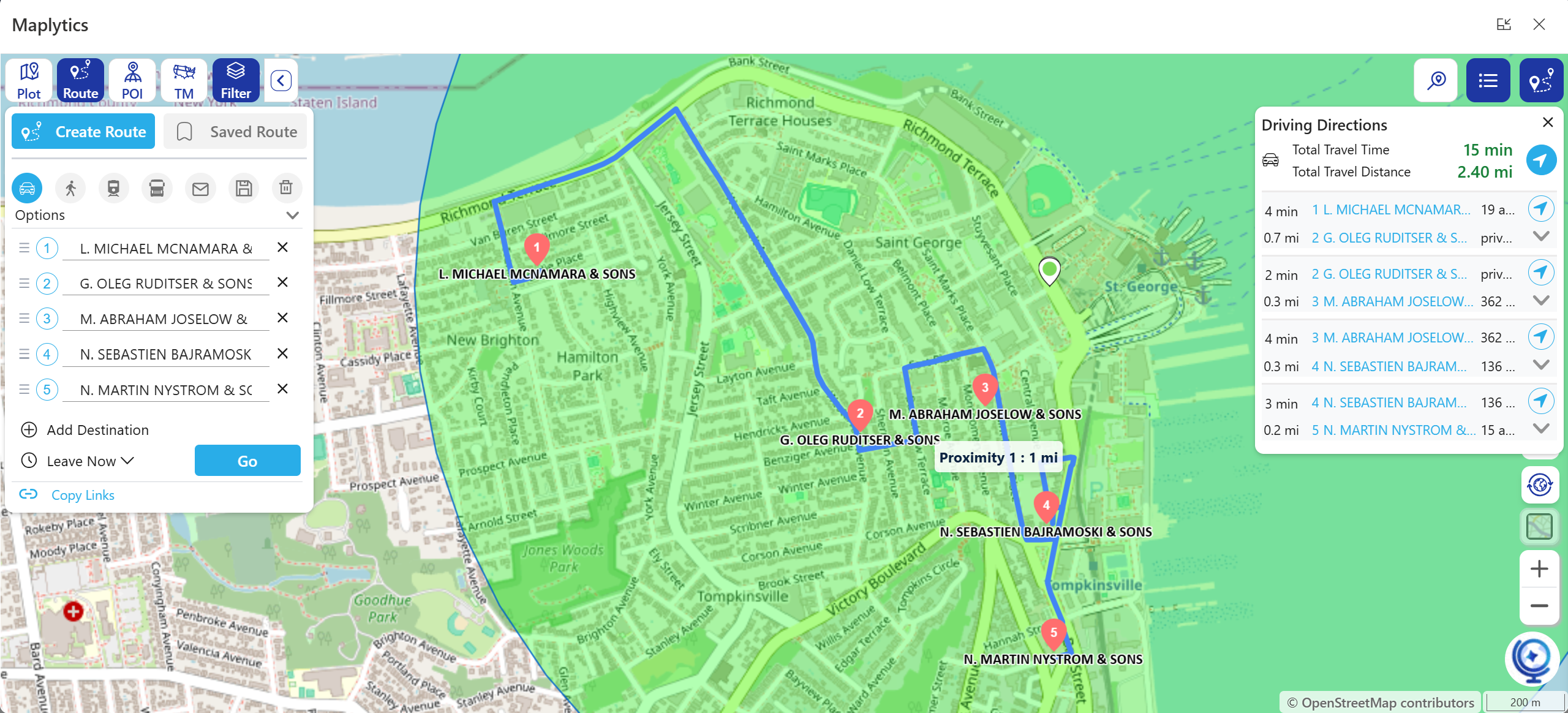 The next question is how to visit them. Dynamics 365 route optimization turns a list of stops into the shortest, smartest route, so reps drive less and visit more. Route mapping in Dynamics 365 also gives turn-by-turn directions, with navigation through Google Maps, Apple Maps, or Waze, whichever the rep prefers.
Consider a service manager with ten jobs and three technicians. Instead of guessing, she searches by radius around each technician’s location, groups the jobs, and optimizes each route. The day ends with fewer kilometers driven and more jobs completed.
Territories decide who wins the quarter
A Dynamics CRM sales territory is more than a line on a map. Uneven territories mean overloaded reps, neglected accounts, and missed targets. Territory planning in Dynamics 365 needs to be visual, flexible, and easy to revisit.
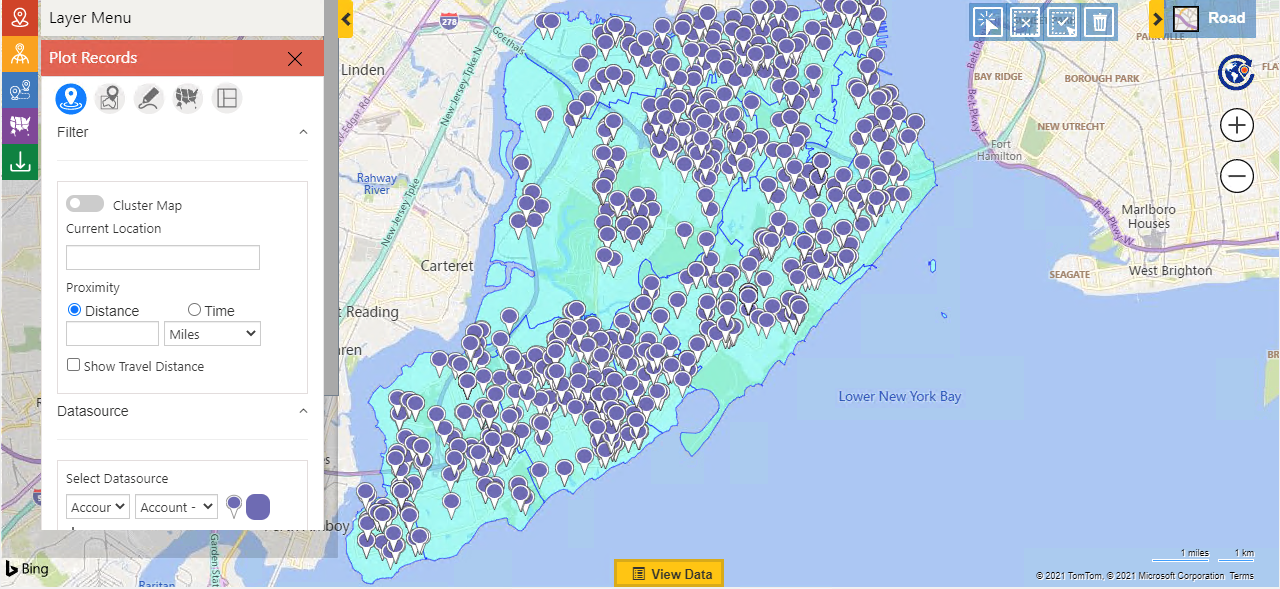 Maplytics lets you build, balance, and categorize multiple territories with flexible filters and save draft territories for future planning. Assignment rules then connect territories to records, so the plan on the map becomes the plan in your CRM. Leaders can test a new structure on the map before anyone’s accounts change hands.
Common FAQs1. What is geocoding in Dynamics 365? 2. Can I use Google Maps with Dynamics 365? 3. How do I create a heat map in Dynamics CRM? 4. What is radius search in Dynamics 365? 5. How does route optimization work in Dynamics 365? 6. Can I manage sales territories on a map in Dynamics 365? 7. Does Maplytics work with Esri? |
Want to see how location intelligence keeps field teams running smoothly, no matter the season?
Try Maplytics free for 15 days inside Dynamics 365. We would love to show you what a thinking map can do for your team. Maplytics with MapCopilot, its AI assistant, is available immediately for Dynamics 365, Power Apps, Power Pages, and Dataverse. Organizations interested in a personalized demo are also encouraged to contact Maplytics’ sales team at crm@inogic.com
For more information, visit our website or Microsoft Marketplace. One can hop onto the detailed Blogs, Client Testimonials, Success Stories, Industry Applications, and Video Library for quick query resolution. Technical docs for the working of Maplytics are also available for reference.
Kindly leave us a review or write about your experience on the Microsoft Marketplace or the G2 Website.

Sam Kumar
https://www.maplytics.com/Sam Kumar is the Vice President of Marketing at Inogic, a Microsoft Gold ISV Partner renowned for its innovative apps for Dynamics 365 CRM and Power Apps. With a rich history in Dynamics 365 and Power Platform development, Sam leads a team of certified CRM developers dedicated to pioneering cutting-edge technologies with Copilot and Azure AI the latest additions. Passionate about transforming the CRM industry, Sam’s insights and leadership drive Inogic’s mission to change the “Dynamics” of CRM.